This is one outlet's own report from Engadget — the article as it was filed. Other outlets are covering the same event; open the full story to compare every source side by side.
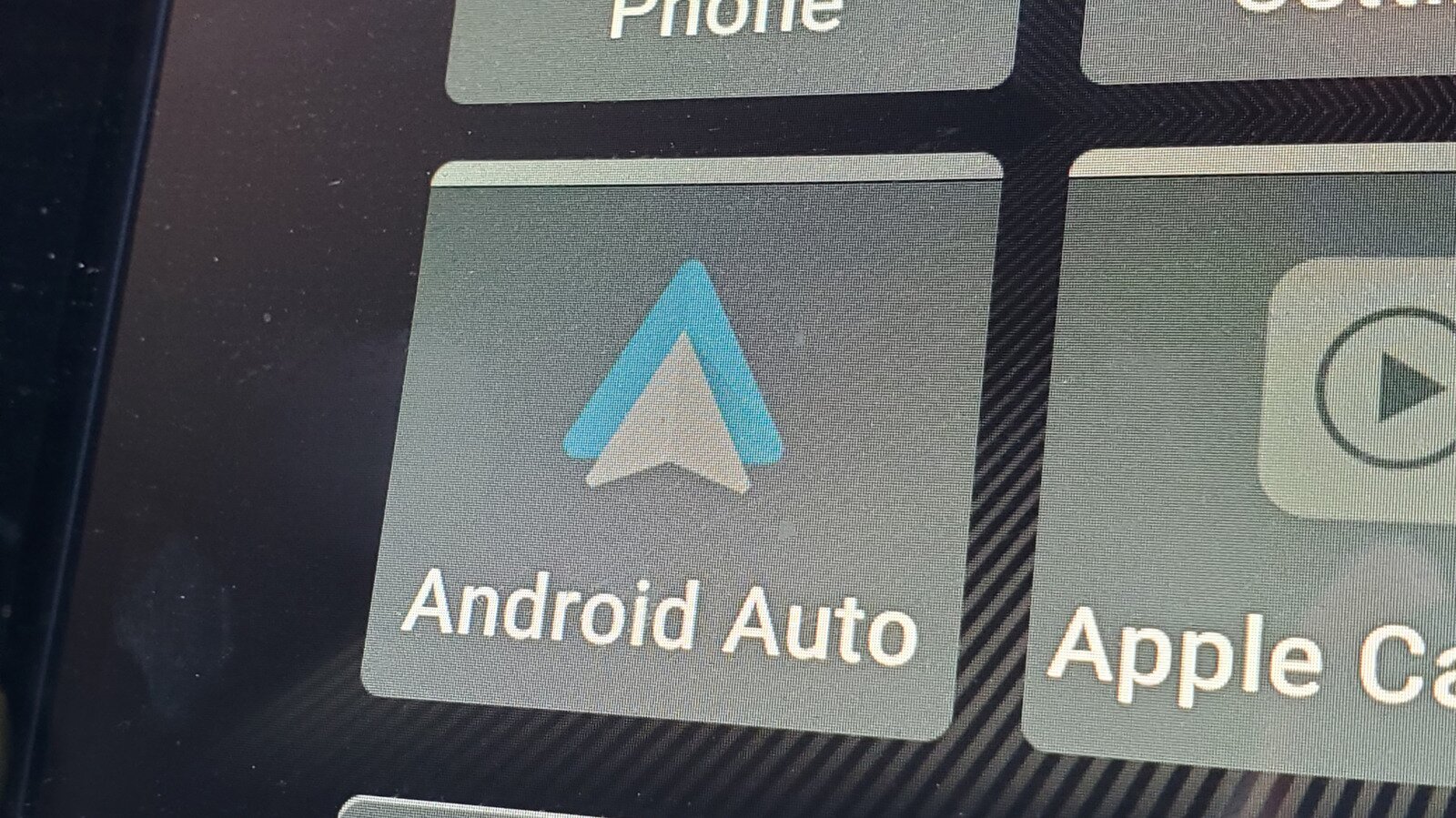
Smith Collection/gado/Getty Images Android Auto does a solid job of mirroring your phone's most useful apps on your car's infotainment screen. From maps to music and messaging, Android Auto handles the expected tasks just fine. But buried inside the app is a developer menu that most haven't even seen, let alone used.
Android Auto's hidden developer menu unlocks quite a few powerful settings, starting with a wireless toggle and an "Unknown Sources" option that lets non-Play Store apps run on your car's display. But how do you even get to access these features?
Gabriela Vatu Accessing Android Auto's hidden display settings takes less than a minute and it's actually not that difficult to find. Here's how to do it:
Open your phone's Settings and search for Android Auto . Alternatively, go to Settings > Connected Devices > Android Auto.
Scroll all the way to the bottom of the page.
Tap Version and permission info about 10 times in quick succession.
The phone will ask for confirmation if you want to allow developer settings, so press to confirm.
Scroll back to the top of the Android Auto menu and tap the three-dot menu in the upper corner.
Select Developer settings and you're in.
Note that the exact menu names can vary slightly depending on your device.
The developer menu comes with a wide range of settings to choose from. Here are some of the features you'll find useful.
The setting controls whether Android auto can connect to your car or a wireless adapter without a cable. The box should be checked by default, but if it isn't, you can enable it manually. If you are having trouble connecting wirelessly, check here first, as toggling the setting off and back on again often resolves stubborn connectivity issues.
There's a hidden gem among these developer settings. Much like Android's standard sideloading option, enabling Unknown Sources in Android Auto's developer menu allows apps that aren't listed on the Google Play Store to appear on your car's display. CarStream and Fermata Auto, for instance, let you stream YouTube on the infotainment screen. We get why Android Auto doesn't allow such apps by default, but we also understand the desire to stream YouTube while you're waiting for kids' sports practice to be over.
When you connect your phone to your car, it automatically negotiates a video resolution with your car's infotainment system. Sometimes, the system plays it too safe so you get a blurry interface even on a high-end dashboard. Well, the Video Resolution option makes it possible to force a higher output to sharpen icons, maps and text.
Unless you're trying to record a video of whatever's on your screen for a short time, enabling the options to save video, save audio and microphone input isn't advisable as these will put a strain on your phone's processor, causing the device to heat up, drain battery and eat up internal storage.
Gabriel Nica/Shutterstock For most drivers, enabling Unknown Sources and checking the wireless toggle are two actions worth taking. While it's understandable why Google is blocking off apps that take over the infotainment screen with YouTube vids, it's clear there's an interest for this given the number of apps. Third-party apps are filling gaps that Google hasn't officially addressed.
The developer menu won't transform Android Auto overnight, but it does hand you a level of control that Google hasn't advertised. While some of them are great to have, others are definitely not meant for everyday use. Still, a few taps and you'll know more about Android Auto than most people who use it every day.
AIPROPX is an independent multi-source news index — we track, compare, and connect coverage from across the web into one place you won't find anywhere else.